Tutorial 14 of 15
Tune up, play drones and keep a practice journal
Beginner 8 min
Tune any instrument with the microphone in equal or historical temperaments, practise intonation against drones and track your practice minutes and tempo goals.
The Tuner and drone box and the Practice journal box sit in Tonegrid's Practice view, next to the metronome described in Practise with the metronome, tempo trainer and click tracks.
Tune your instrument
The tuner uses your microphone. It starts only when you press Start tuner and stops when you press Stop tuner, switch to another view or leave the page. The sound is analysed a few times per second; nothing is recorded or stored.
- Choose an Instrument: Chromatic (any note), or a tuning of guitar, 7-string guitar, bass, ukulele, violin, viola, cello, double bass, mandolin or banjo.
- Check the Reference pitch A4 (Hz, 415–466). 440 is the usual standard; orchestras often use 442 and baroque ensembles 415.
- Press Start tuner and allow the microphone when your browser asks.
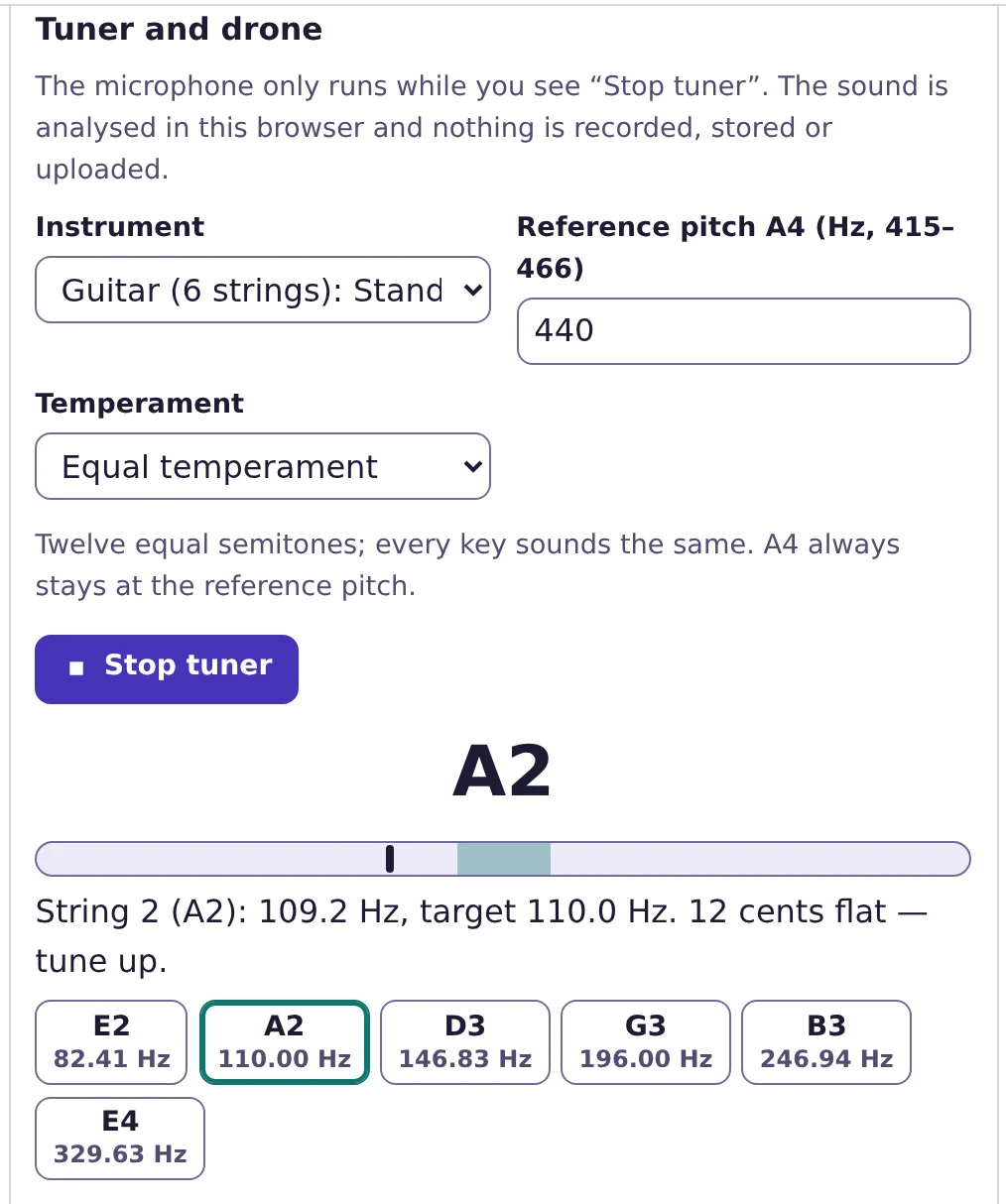
- Play one string at a time. The big letters show the note, the bar shows how far off you are (the green zone is ±5 cents), and the line below says for example "String 2 (A2): 109.2 Hz, target 110.0 Hz. 12 cents flat — tune up."
With an instrument chosen, Tonegrid picks the string nearest to what you play and highlights it in the row of string buttons. Press a string button to hear its reference tone for two seconds.
Temperaments
Temperament changes the target of every note:
- Equal temperament — twelve equal semitones, the modern standard.
- Just intonation (5-limit) — pure fifths and major thirds above the tonic; sweet in one key.
- Pythagorean — pure fifths with wide thirds.
- Quarter-comma meantone — pure major thirds, with one unusable wolf fifth.
- Werckmeister III and Vallotti — well temperaments in which every key is usable.
For every temperament except equal temperament, choose the Tonic of the temperament, the key it is built on. A4 always stays at the reference pitch, as on most tuners with temperament settings. The Tuning Reference tool lists the exact frequency and cents of every note for the same settings.
Practise intonation against a drone
A drone is a long, steady tone. Playing scales or a melody against it shows clearly when a note is out of tune.
- Choose the Drone note.
- Tick Add the fifth and Add the octave if you like, and pick a Third: No third, Major third or Minor third.
- Intervals decides how the added notes are tuned: Pure intervals (just) uses the ratios 3/2, 5/4 and 6/5, which sound smooth and beat-free; Equal-tempered intervals sounds like a piano.
- Choose a Sound and Drone volume, then press Start drone. The frequencies are listed below the button.
The drone follows the reference pitch and temperament you set for the tuner.
Keep a practice journal
The journal stores practice sessions in this browser only. It is not part of your Tonegrid project files or share links.
- Fill in Date, Minutes and Piece or exercise. Pieces you used before are suggested as you type.
- Optionally enter the Tempo reached (BPM, optional) and a Target tempo (BPM, optional) for the piece, plus a short Note (optional).
- Press Add session. After a metronome session, Use metronome time and tempo fills in the minutes you practised with the metronome during this visit and the current tempo.
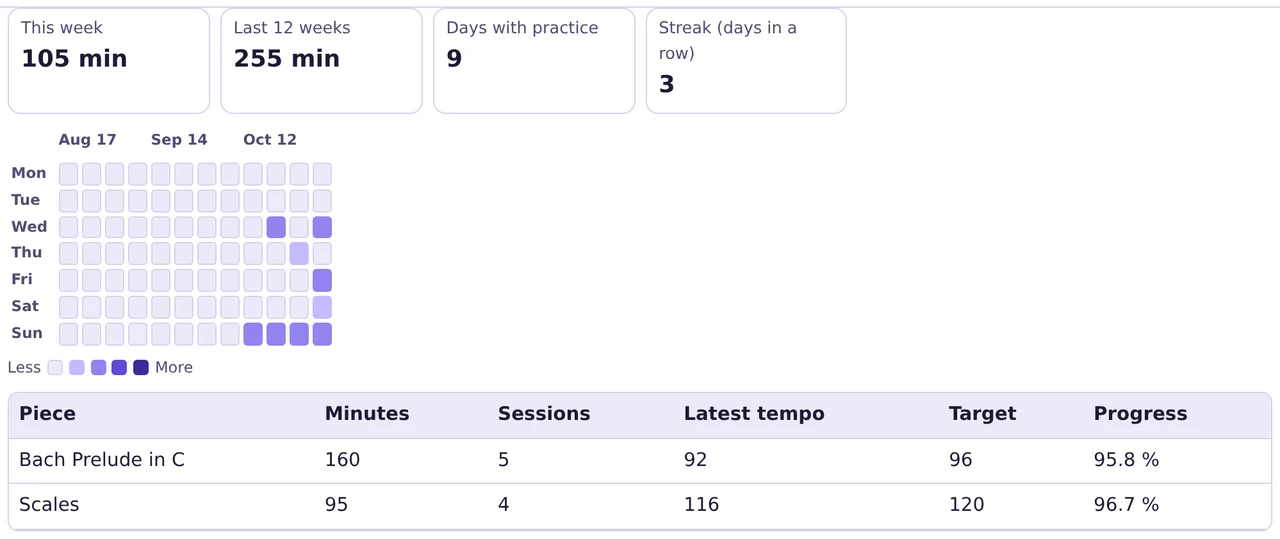
Below the form you see this week's minutes, the last 12 weeks, the days with practice and your streak, a heatmap with one square per day (darker means more minutes), a table of your pieces with the latest tempo and the progress towards the target, a tempo chart and the latest sessions. Each session has a delete button.
Export, import and back up
- Export CSV saves the sessions as a spreadsheet (date, minutes, piece, bpm, target_bpm, note).
- Save journal file saves a
.tonegrid-practice.jsonfile. - Import CSV or journal file adds the sessions of a file; sessions that are already in the journal are skipped. This is how you move the journal to another device.
- Clear journal deletes everything after a confirmation.
Bundlekeep collects the journal together with your other usefulweb data, and the Practice Log Report tool makes the same report from a pasted CSV.
Ready to try it?