Tutorial 12 of 15
Train your ear and your voice
Beginner 8 min
Name intervals and chord types by ear, sing a target note back with live pitch feedback from your microphone, and analyse the notes of a recording.
The Ear trainer tab has three parts: a quiz for intervals and chord types, a sing-back drill that listens to your voice, and a pitch analysis for audio files.

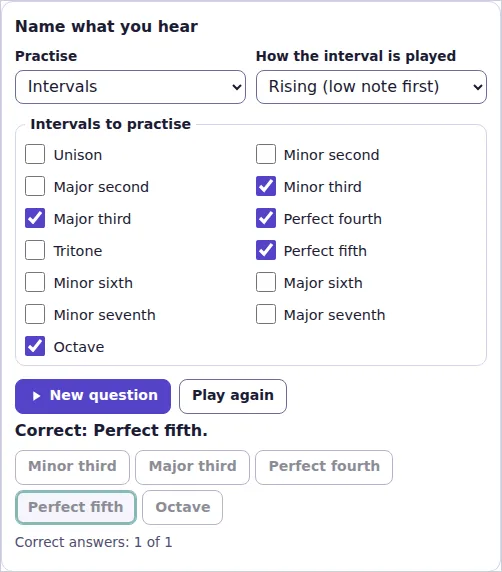
Name what you hear
- Click the Ear trainer view tab below the pattern buttons.
- In Practise choose Intervals or Chord types.
- Tick the intervals or chord types you want to practise. Start with a few that sound very different, for example Major third, Perfect fifth and Octave, and add more as you improve.
- For intervals, How the interval is played can be Rising (low note first), Falling (high note first) or Together (harmonic).
- Press New question. Listen, then press the answer button.
Tonegrid tells you whether you were right and what the answer was. Play again repeats the question. The score counts only this visit; nothing is saved.
Questions use random root notes between C3 and C5, so you learn the sound of the interval, not one particular pair of notes.
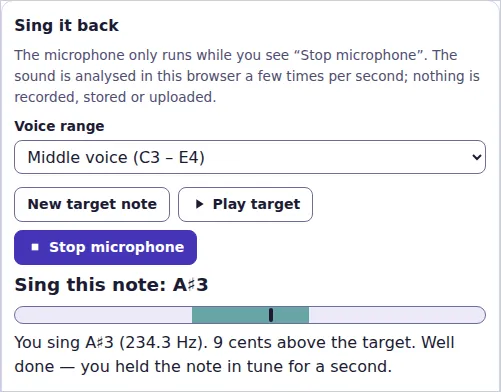
Sing it back
This drill uses your microphone. It starts only when you press Start microphone, and stops when you press Stop microphone, switch to another tab or leave the page. The sound is analysed a few times per second to find its pitch; nothing is recorded or stored.
- Choose a Voice range: Low voice (E2 – G3), Middle voice (C3 – E4) or High voice (A3 – D5).
- Press New target note. Tonegrid plays the note and shows its name, for example "Sing this note: G3".
- Press Start microphone and allow the microphone when the browser asks.
- Sing the note. The text shows what you sing and how many cents you are above or below the target (100 cents are one semitone). The meter moves to the right when you are sharp and to the left when you are flat; the middle zone (±25 cents) counts as in tune.
- Hold the note in tune for a second to get a "Well done".
Use headphones if the target note from your speakers confuses the pitch detection. If the browser blocked the microphone, allow it for this site in the browser's site settings and press Start microphone again.
Screen readers announce the pitch at most every two seconds, so the speech does not run over itself.
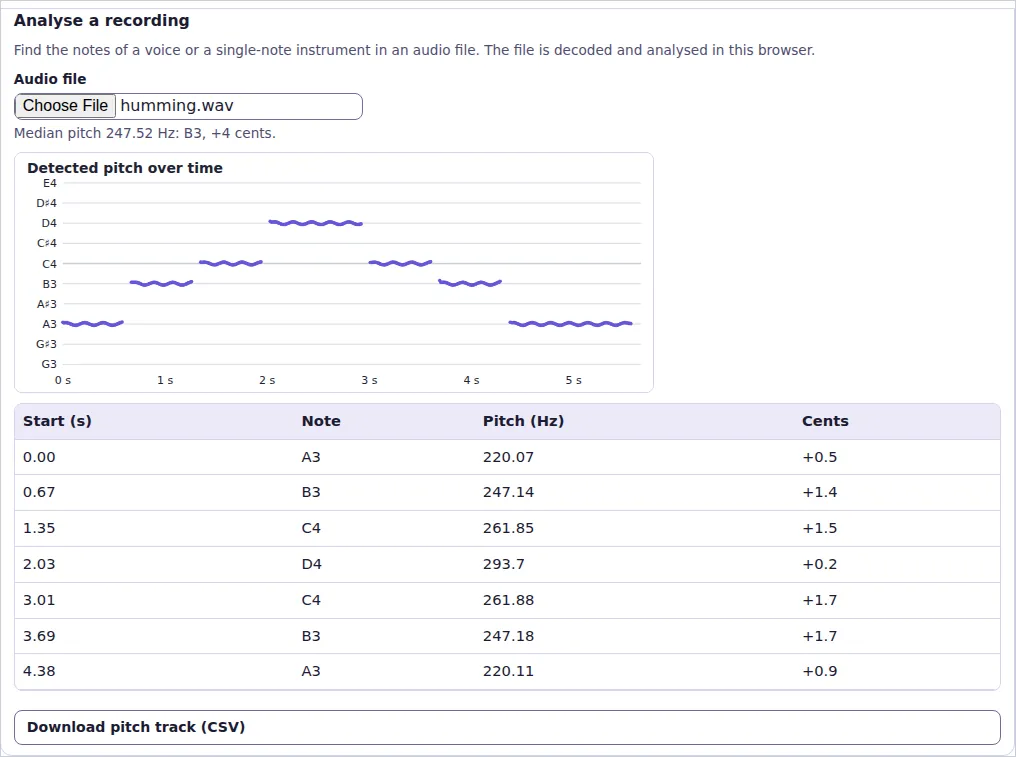
Analyse a recording
- Under Analyse a recording, choose an audio file with Audio file (WAV, MP3, Ogg, FLAC and other formats your browser can decode).
- Tonegrid shows the median pitch with its nearest note and cents, a chart of the pitch over time, and a table of the notes held for at least 60 ms.
- Download pitch track (CSV) saves the pitch every 10 ms for a spreadsheet.
The first 30 seconds are analysed. Use recordings of one voice or one single-note instrument; chords and drums have no single pitch.
The analysis uses the YIN pitch detection method (de Cheveigné and Kawahara, 2002), the same code as the Pitch Detector tool on usefulweb.site. Another usefulweb app can also send audio here through the App Bridge.
Ready to try it?